RAUM AI is distributed through the Zendesk Marketplace. The Marketplace listing is the primary production installation channel because updates stay attached to the reviewed public app. A private package upload is a test-channel option only; do not use a private copy for a normal customer installation.
Before you start
Have these items ready:
- A Zendesk account and a user who can install Marketplace applications.
- A RAUM organization. If you are new to RAUM, begin with the guided onboarding flow.
- Administrative access to the AI provider account you plan to connect. RAUM supports the providers shown in the product at the time of setup.
- A small set of representative Zendesk tickets for a non-sending verification.
If your company restricts Marketplace apps, ask the Zendesk owner to review the requested application access and your internal data-handling requirements before installation. The RAUM security page describes the product controls to include in that review.
1. Connect Zendesk during RAUM onboarding
Sign in to RAUM, create or select the organization, and choose the Zendesk connection method offered by the onboarding flow. Use an account with the permissions needed for the setup you are approving. RAUM uses this connection for organization setup and, where Zendesk permits it, can install the public Marketplace listing with the required app settings already filled.
If automatic installation is unavailable—for example, because the connected Zendesk user is not an administrator—the onboarding flow provides a manual Marketplace path. This is a recoverable setup branch, not a reason to upload a private package.
2. Install the public Marketplace application
Open the Zendesk Marketplace from the link shown in RAUM or search the Marketplace for RAUM AI Assistant. Confirm that you are installing the public listing into the intended Zendesk account, then review the locations and permissions Zendesk displays.
During a manual installation, use the organization identifier and the one-time application credential generated by RAUM. Treat the credential like a password: paste it only into the RAUM Marketplace app settings for the intended Zendesk account. If the credential is lost or exposed, generate a replacement from RAUM and update the installation.
3. Review permissions and role visibility
Zendesk controls who can install an app and where it is visible. After installation:
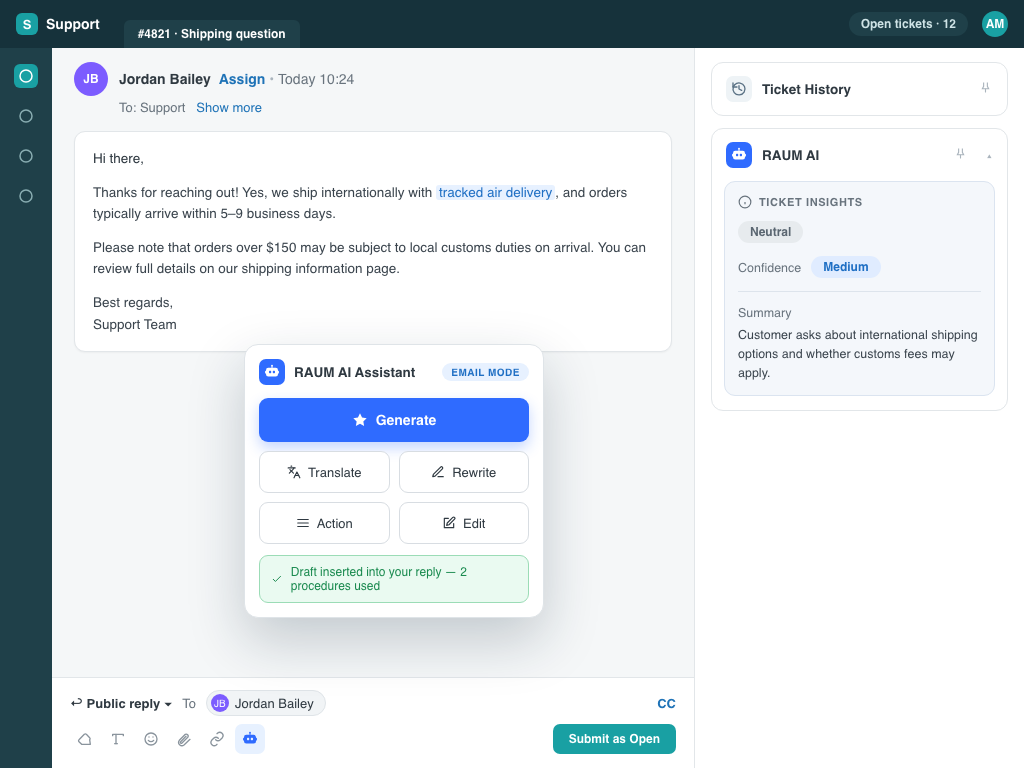
- Confirm the RAUM app is enabled in the agent ticket interface.
- Review any role or group restrictions applied to the installation.
- Open a ticket as a user who should have access and verify that the RAUM sidebar or editor controls appear.
- Repeat with a restricted role if your rollout intentionally excludes some agents.
If one administrator can see the app but an agent cannot, investigate Zendesk role, group, app-location, and installation restrictions before changing RAUM credentials.
4. Connect an AI provider in RAUM
Open the RAUM organization settings, select a supported provider, and enter a provider API credential created for this workload. Use the provider's current console to set spend limits, alerts, project access, and key rotation. Do not paste a consumer chat password or a credential from an unrelated project.
Choose the model and workflow settings that match the pilot. Provider availability and pricing change, so use the current provider documentation rather than a price copied from an older guide. The BYOK pricing guide explains the cost model and monitoring checklist.
5. Verify the app without sending a customer reply
Start on a representative ticket that does not require an irreversible action. Keep the ticket composer unsent while you verify the integration:
- Open the RAUM sidebar and confirm it loads for the expected agent role.
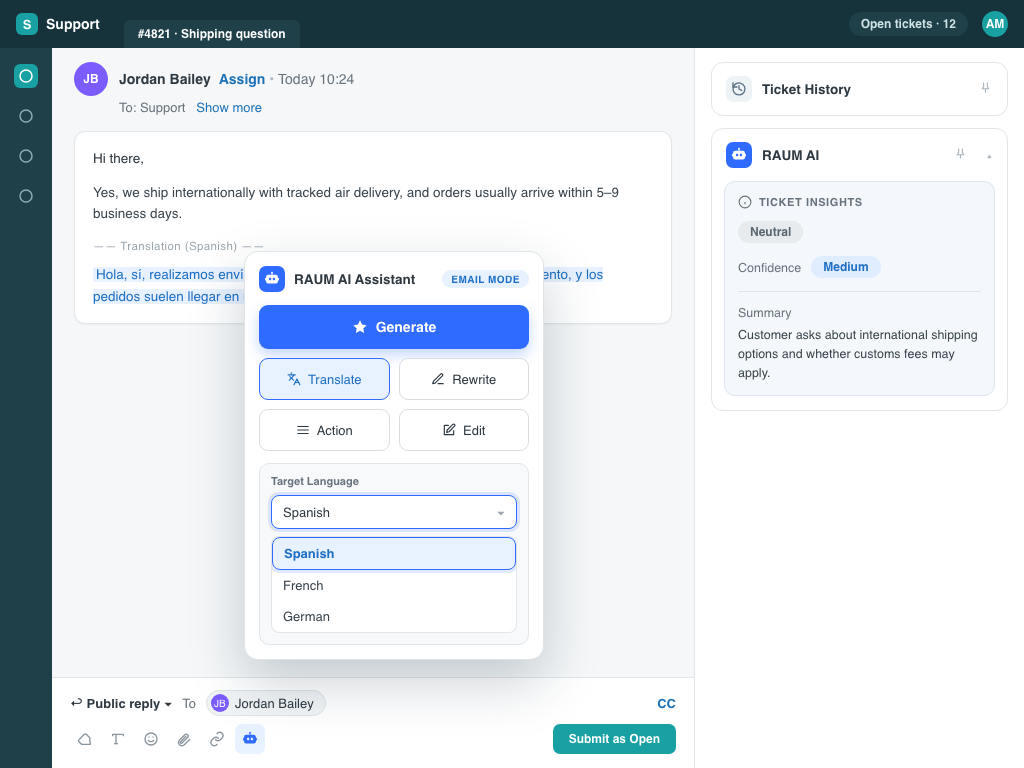
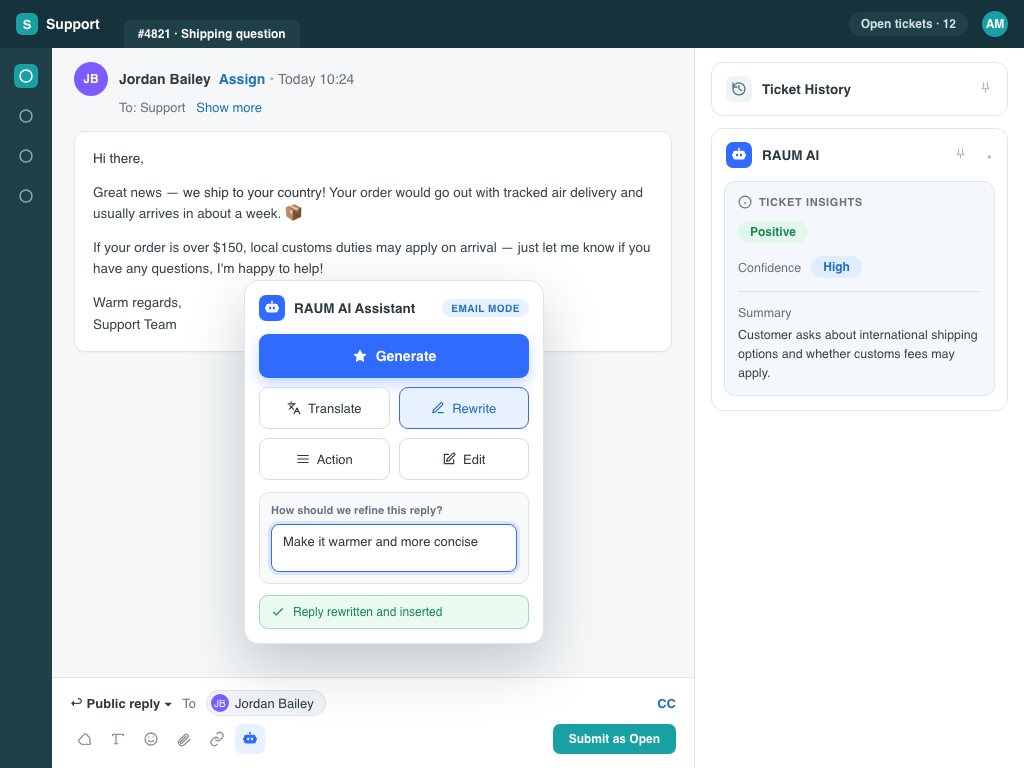
- Run a draft-generation action and review the result in the composer.
- Confirm the draft uses the ticket conversation and does not invent missing identifiers.
- Try Translate or Rewrite on text you can safely discard.
- Remove the draft from the composer when the check is complete; do not submit the ticket.
A successful draft proves the app can authenticate and reach the configured provider. It does not yet prove that every knowledge source, procedure, connected tool, or autonomous action is ready. Test those separately with the operating model in the automation decision hub.
Authentication troubleshooting
The app says the credential is invalid or unauthorized
- Confirm the installation belongs to the same RAUM organization shown in settings.
- Generate a fresh Marketplace app credential in RAUM and update the Zendesk installation. A rotated credential invalidates the previous one.
- Check that a duplicate private or public installation is not using an older credential.
The provider test fails
- Confirm the credential is an API key for a supported provider project, not a normal account password.
- Check provider billing, quota, allowed models, project permissions, and regional restrictions in the provider console.
- Rotate the provider key if it was copied into the wrong place or shared outside the approved setup path.
The RAUM controls do not appear
- Reload the Zendesk agent workspace after installation.
- Confirm the user is viewing an agent ticket, not the end-user help center.
- Review Zendesk role, group, brand, and app restrictions.
- Ask a Zendesk administrator to confirm the public RAUM Marketplace app is installed and enabled.
Next steps after installation
Keep the first rollout narrow. Connect approved knowledge, procedures, and tools; define which tickets are copilot, autonomous, or human-only; and monitor results in RAUM analytics. Add write actions only after read-only behavior, permissions, failure handling, and escalation have been tested with representative tickets.